Arrow, Star, & Polygon Shapes
Classic Arrows
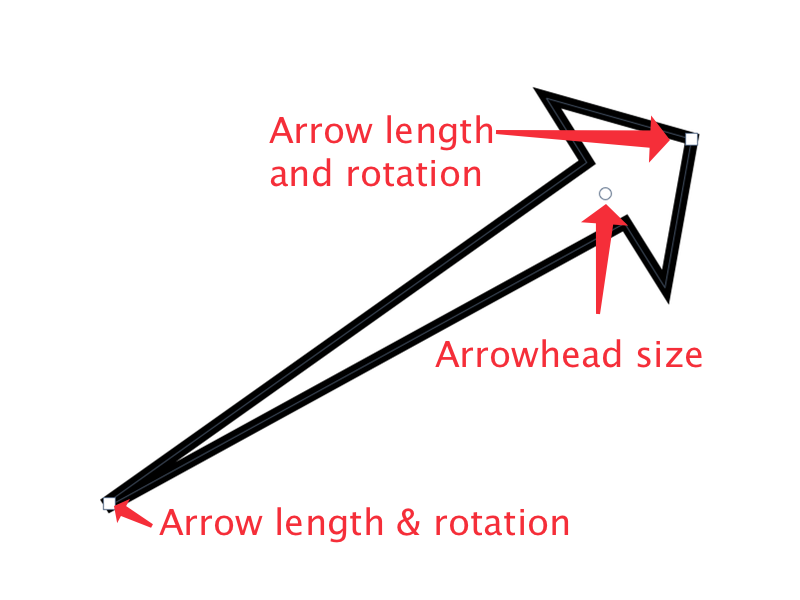
 To draw a basic (aka “Classic”) arrow, click on the arrow tool in the tools palette and the various options for arrows will be loaded in the inspector palette. Draw out an arrow on your canvas.
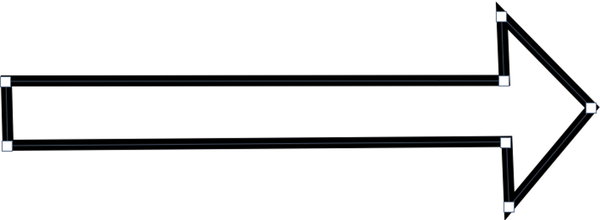
Arrowhead Size: The arrowhead can be increased or decreased in size by clicking and dragging on the point at the base of the head.
Arrow Length: The length of the arrow can be increased or decreased by clicking and dragging on the points at the tip of the tail or the head.
Bendable Arrows
Starting in Acorn 8.5, you now have the option to add a bend to your arrows, and also have arrow heads at either end of your shape.
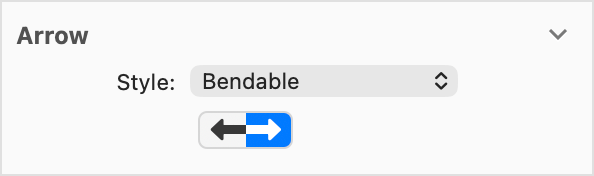
To use this new bendable type, make sure the Style: option is set to “Bendable”. You can use this option on an existing arrow, or use it before drawing a new arrow. The other option you have is “Classic”.
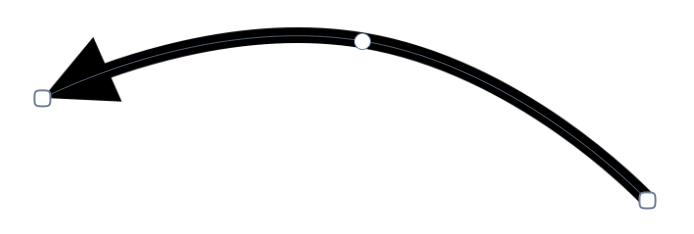
Once you've drawn out an arrow, you can use the handles on the two end points to adjust the angle of your arrow, and use the handle in the middle of the arrow to adjust the curvature.
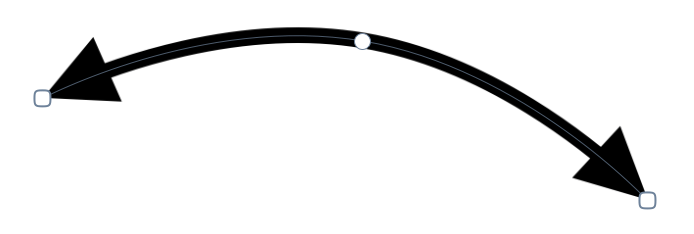
You can also use the arrow palette to add a second arrow head bendable arrows:
To learn more about fill, stroke, and shape rotation, read the 'shape tools' tutorial.
Modifying the Arrow Tail and Arrow Width
In order to modify the shape of the classic arrow tail, choose Shape ▸ Bézier Stuff ▸ Convert to Bézier Shape. Then, click and hold on the bézier tool in the tools palette until a drop down menu appears. Choose 'Bézier Anchor Select Tool'. Click and drag on one of the bézier points of the arrow tail to modify its appearance.
To modify the width of the arrow, choose Shape ▸ Bézier Stuff ▸ Convert to Bézier Shape (if you haven't already). Select the move tool and click and drag on an edge of the bounding box.
Note: Converting your arrow to a bézier shape is a permanent operation unless you chose Edit ▸ Undo.
Stars
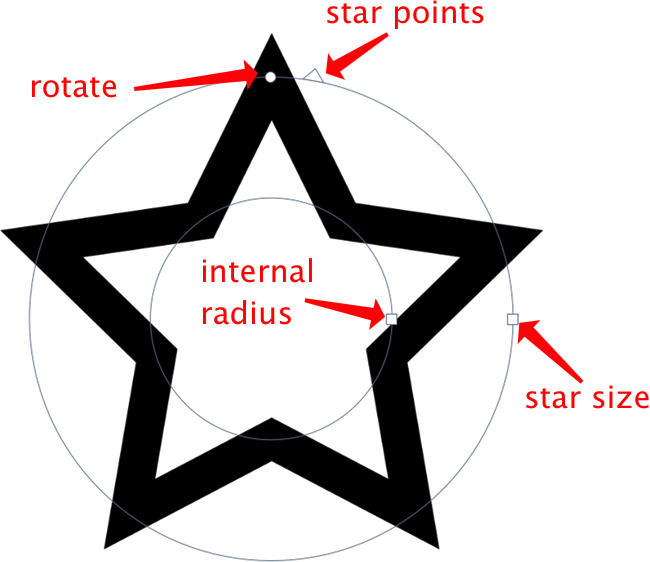
 The star shape tool defaults to a 5 point star when you initially draw it on your canvas. All of the standard shape tool options are available for the star in the inspector palette.
You can increase or decrease the internal star radius by clicking and dragging on the inner circle of the on canvas controls. You can also quickly resize, increase or decrease star points, and rotate your star shape by using the on canvas controls.
Triangles, Diamonds, & More
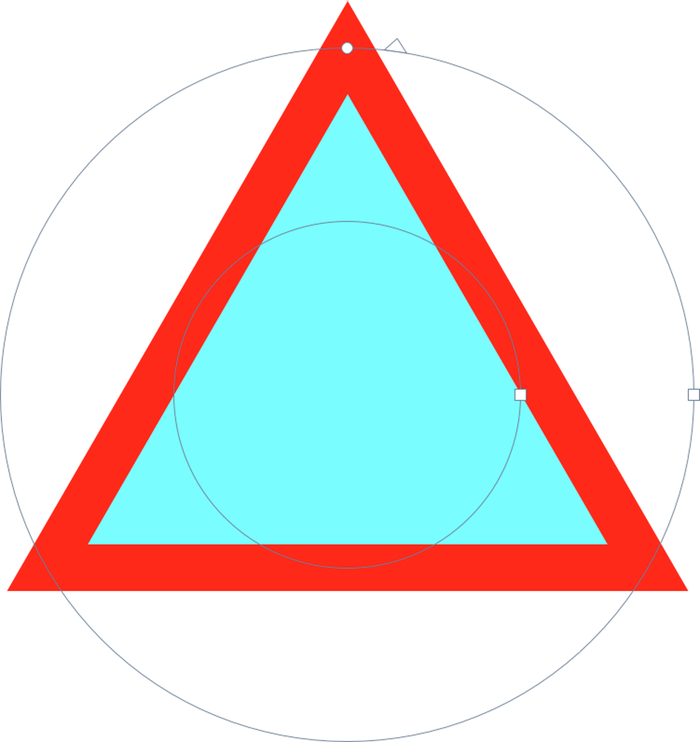
The star shape tool is the starting point for creating other shapes in Acorn. To start, select the star shape tool and draw out a star.
Diamond: Change the number of star points to 2 using the on canvas controls or star points field in the inspector palette.
Triangle: Change the number of star points to 3 using the on canvas controls.
Tri-Star: Change the number of star points to 3. Drag the internal radius of the star inwards.
Pentagon: Keep 5 star points. Drag the internal radius on-canvas control outwards until you have a pentagon.
Hexagon: Change the number of star points to 3. Drag the internal radius on-canvas control outwards until you have a hexagon.
Octagon: Change the number of star points to 4. Drag the internal radius on-canvas control outwards until you have an octagon.
Decagon: Keep 5 star points. Drag the internal radius on-canvas control outwards until you have a decagon.
Polygons & More
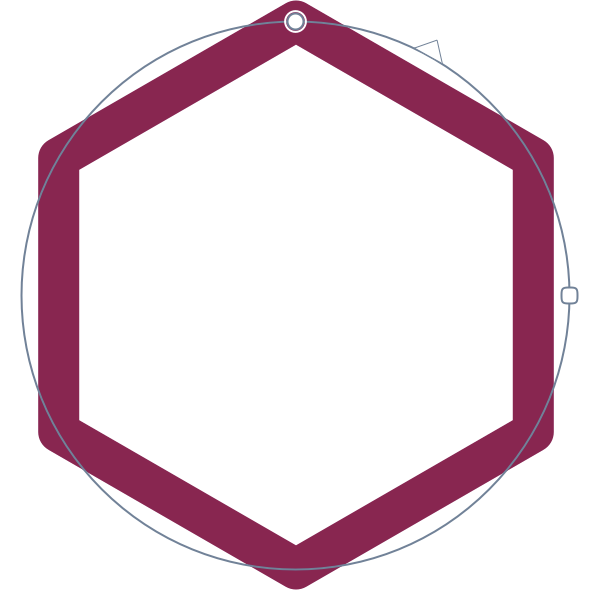
The polygon shape tool can be found by clicking and holding on the star shape tool icon in the tools palette. The polygon shape tool defaults to an octagon shape. You can easily resize, increase or decrease points, and rotate your polygon shape by using the on canvas controls or the relevant fields in the inspector palette.